Code, run and test with JumPHP IDE
This tutorial goes through what the IDE does for you while you write a game. It assumes a project is open (install the IDE and open a project).
Completion and navigation
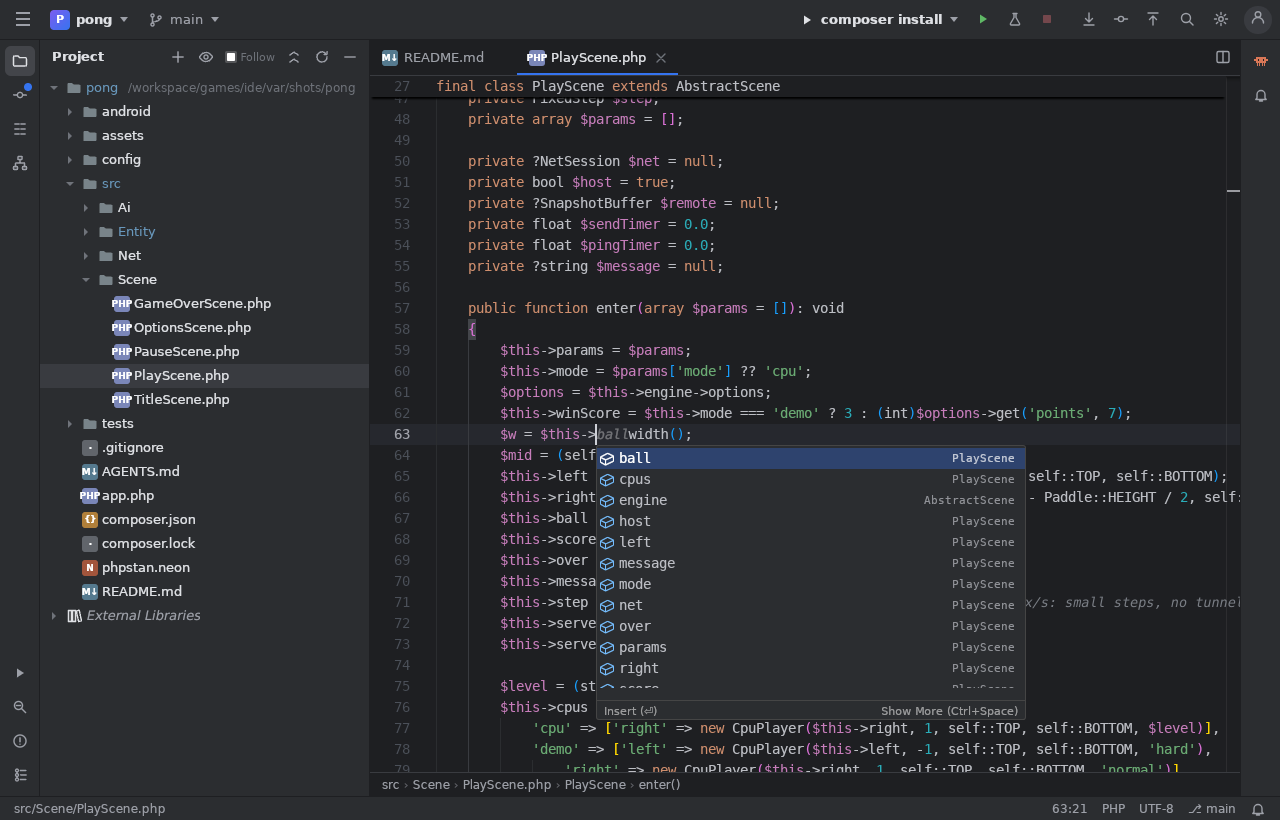
- Type
$this->: the IDE offers the class's properties and methods, with the class that declares them. Ctrl+Space brings it back at any time. - Ctrl+click or Ctrl+B on a name: go to its definition, even in the engine.
- Alt+F7: every usage of a class, a method, a variable.
- Shift+F6: rename everywhere.
- PHP errors (unknown class, method that does not exist…) are underlined as you type; they are all in the Problems window (Alt+6).
- Double Shift: search everywhere (files, classes, actions). Ctrl+Shift+F: search in the files.
The class hierarchy
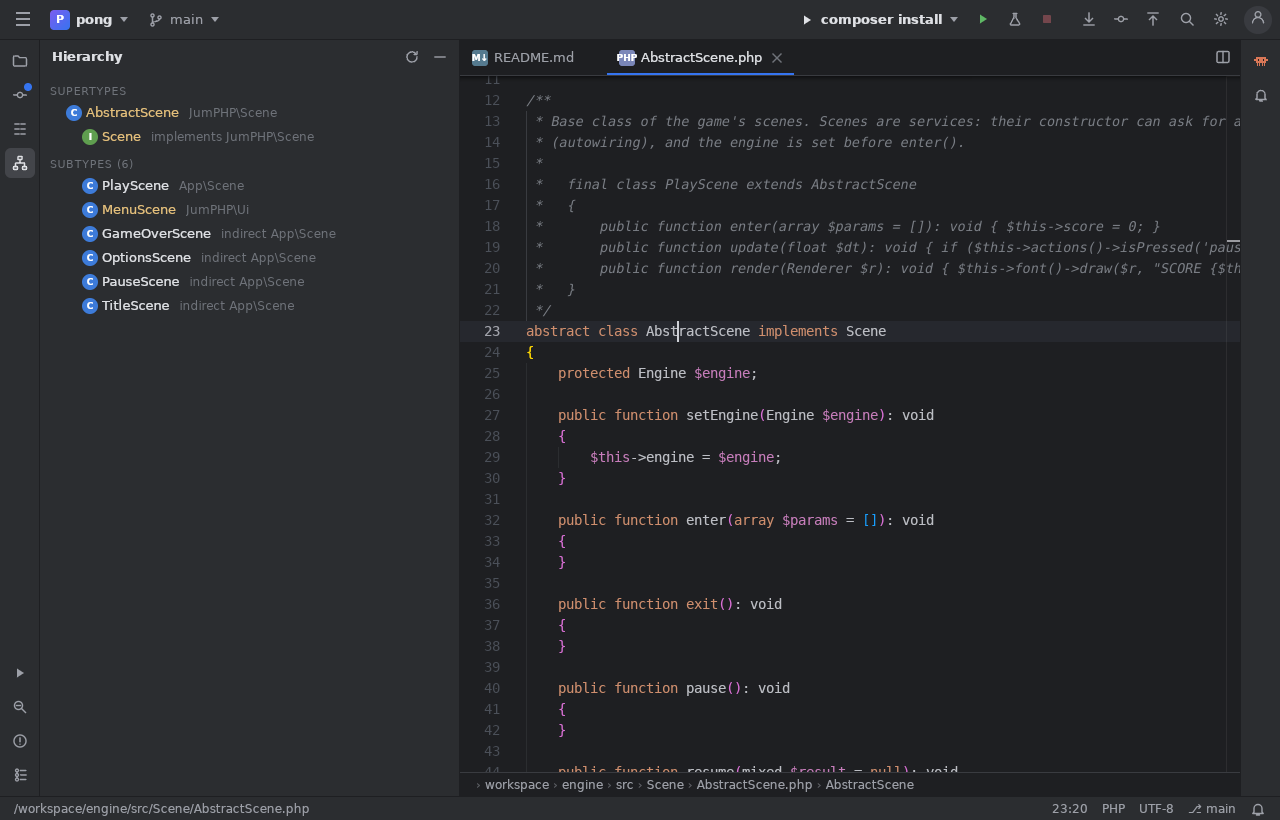
The cursor on a class, Ctrl+H opens its hierarchy: its parents, the interfaces, and every class that extends it
(directly or not). On AbstractScene, you see all the game's scenes and the engine's (MenuScene…). A click opens
the class.
The engine's sources
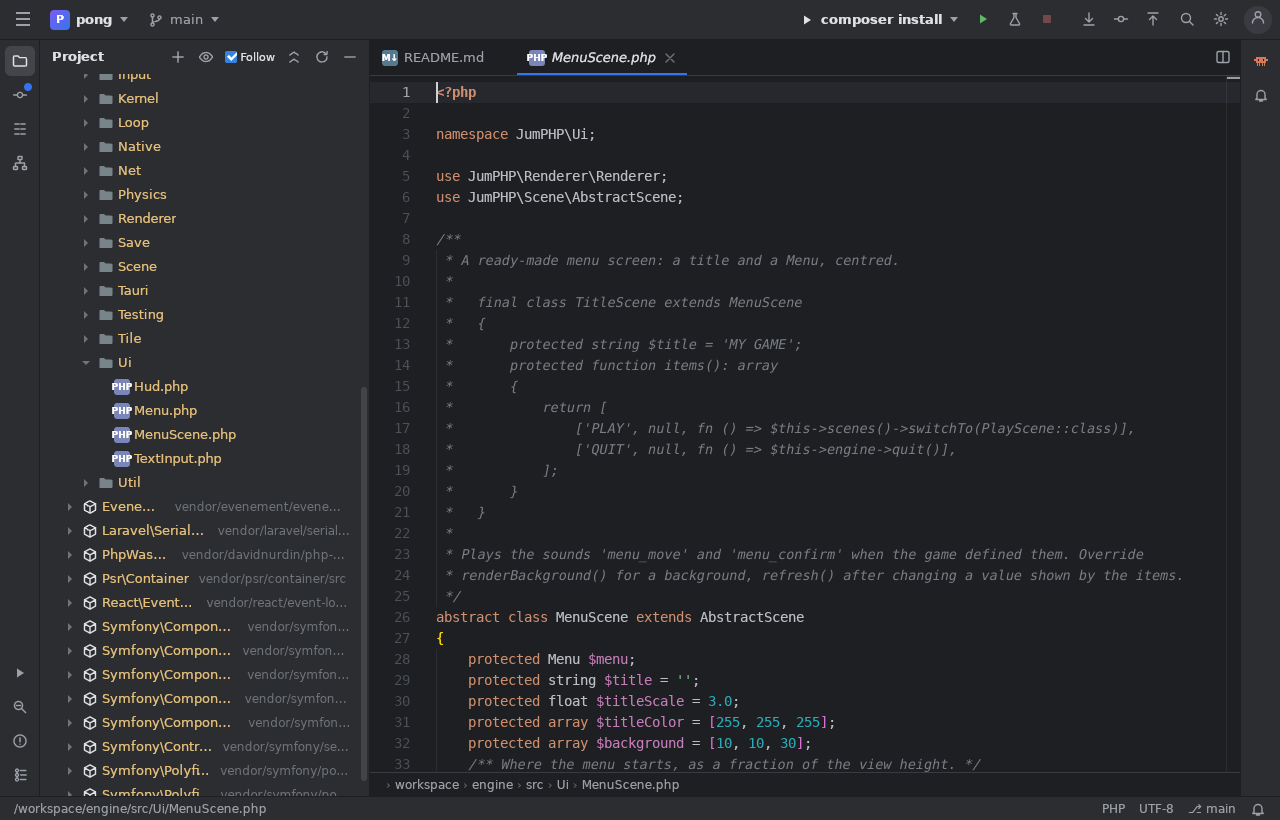
Unfold External Libraries at the bottom of the tree: the JumPHP engine (JumPHP\…) and the Composer packages.
Open a file to see how an engine class is made. The eye at the top of the tree shows the open file in the tree;
check Follow so that the tree always follows it.
Run a scene, run tests
- Right click › Play (green icon) on a scene (
src/Scene/*.php): the game starts right in that scene. Ctrl+Shift+F10 does the same from the editor. - Right click › Play on a test file (
tests/*Test.php): only its tests run, and the result shows as a tree in the Run window, with clickable failure messages (file:line). - The ▶ button at the top runs the chosen configuration (
run,test,shot,build…); the flask runs all the game's tests. - In the web IDE, the game runs in the Game window, on the right or at the bottom: it reloads at every save (hot reload), and ⟳ restarts it.
Git
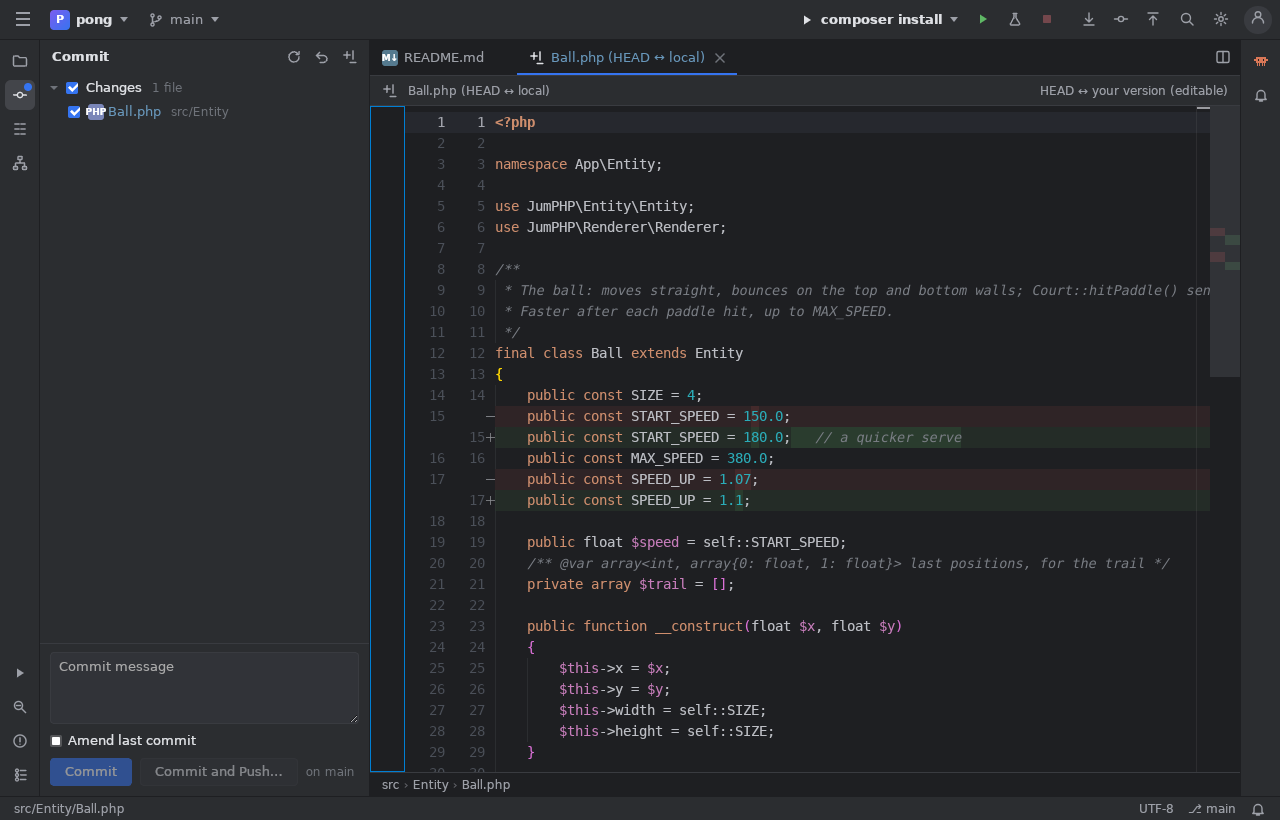
The Commit window (Alt+0) lists the changed files; a click shows the side-by-side diff. Write a message, then Commit or Commit and Push. The branch menu (at the top) switches branches, pulls and pushes. In the web IDE, your changes are drafts: the commit sends them all to GitHub at once, and the game is published again.
Next: Claude in the IDE.